 Beauty virtual camera for Mac
Your best light,
on every call.
Camlune gives you subtle, real-time retouching and flattering light in Zoom, Google Meet, Teams, OBS and every other video app — so you look like you on a really good day.
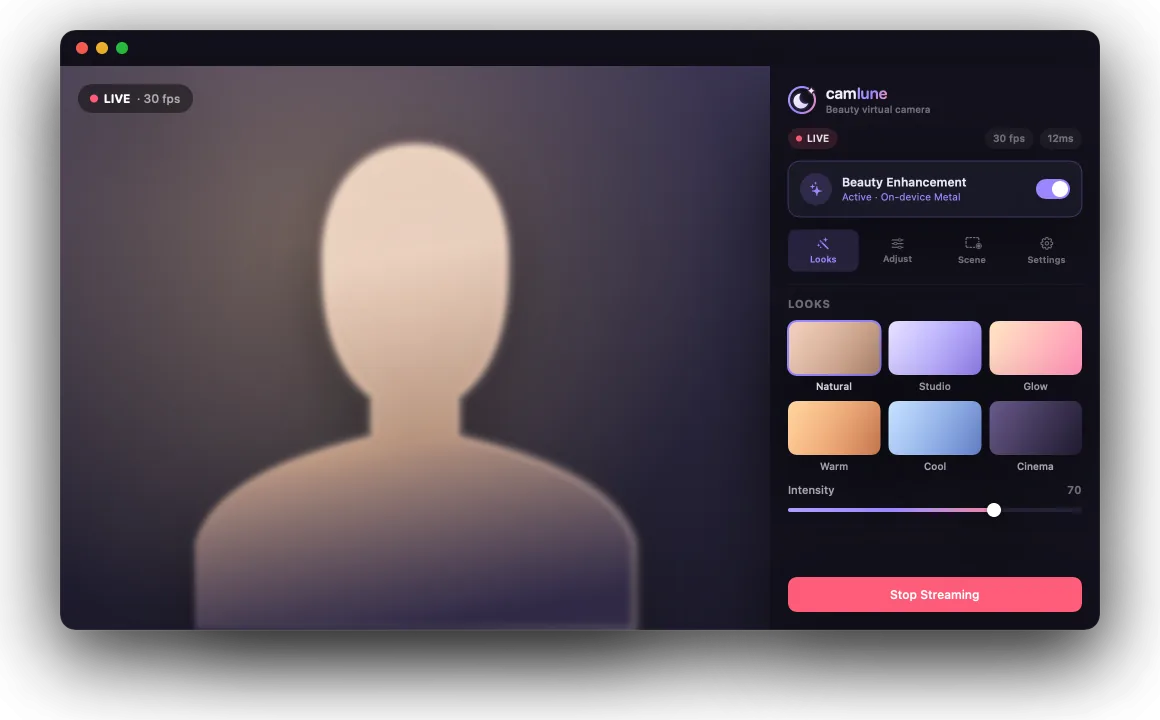
Shows up as a camera in the apps you already use
- Zoom
- Google Meet
- Microsoft Teams
- Webex
- Slack
- Discord
- OBS Studio
- FaceTime
Subtle, never plastic.
Camlune refines what's already there. Skin keeps its texture, your features stay yours — it just looks like you slept well and found the good light.
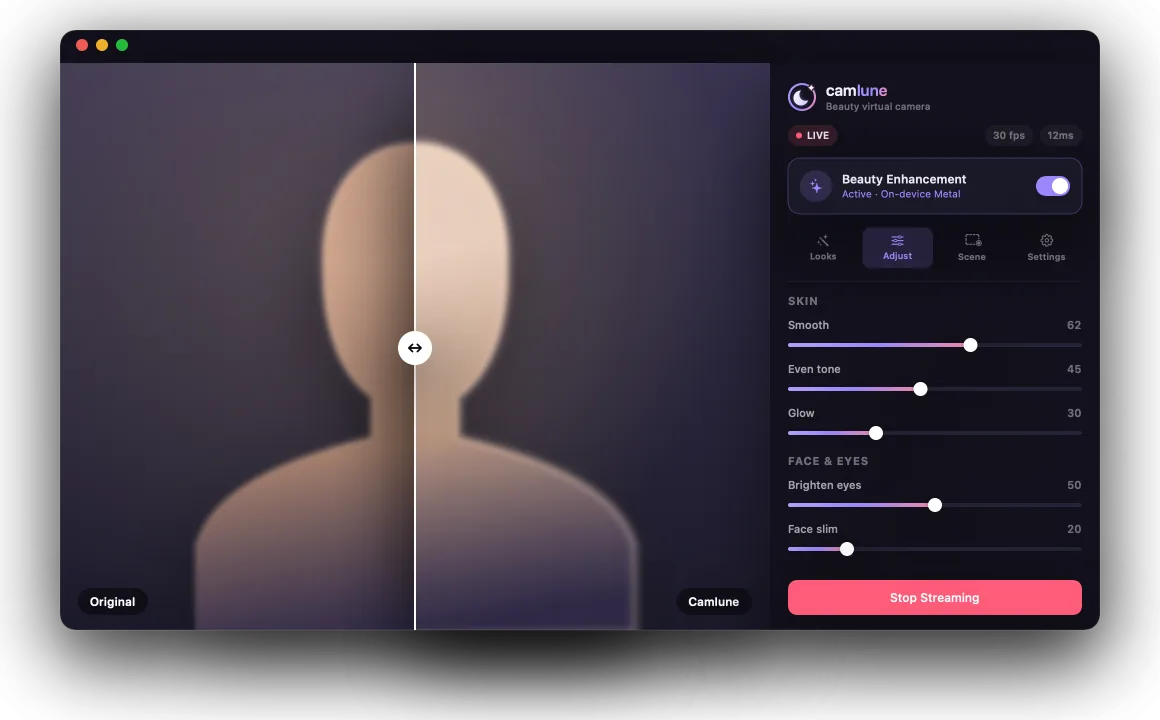
- Skin — smooth, even out tone and redness, add a soft glow or a matte finish.
- Eyes & smile — brighten eyes, soften dark circles, whiten teeth.
- Sculpt — gentle, face-aware shaping for jaw, cheekbones, nose and brows.
- Hold to compare — check the original any time with a split before/after.
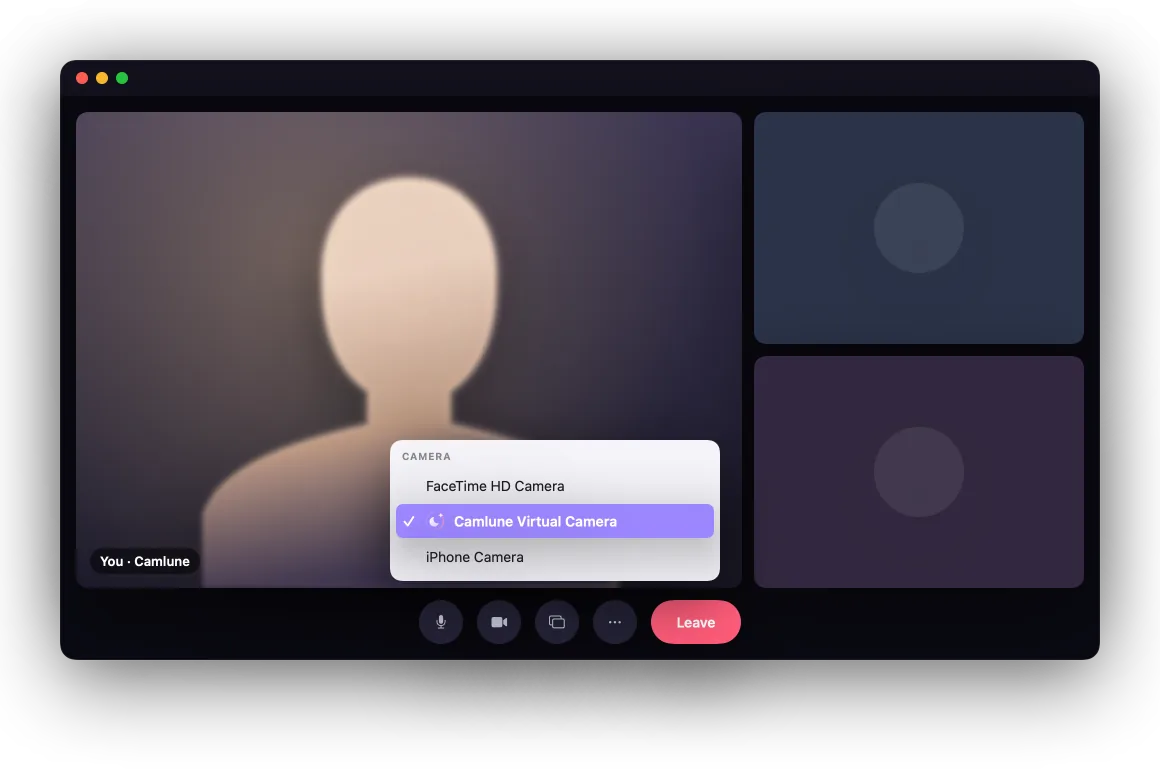
Pick Camlune.
That's the setup.
Camlune installs a modern macOS camera extension. Choose Camlune Virtual Camera in any app's camera menu and your enhanced video goes straight in — no plug-ins, no browser extensions.
- Smooth 30 fps at up to 1080p, with a low-latency Metal pipeline.
- Keeps working when you switch apps or share your screen.
- Use your built-in camera, a USB webcam, or Continuity Camera.
One tap to your look.
Start from a look designed by retouchers, then turn one Intensity slider until it feels right. Looks come in feminine, masculine and neutral profiles.
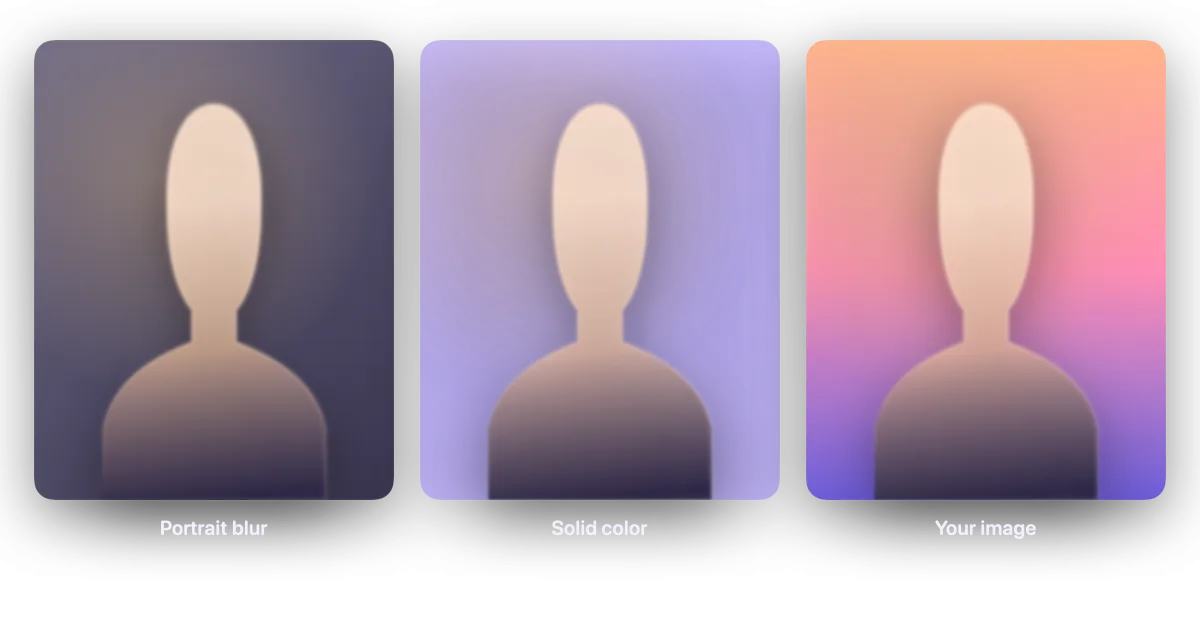
Blur it. Replace it. Clean it up.
On-device person segmentation keeps edges crisp around hair and shoulders — even when enhancement is off.
Your face never leaves your Mac.
Every frame is processed on-device with Apple's Vision and Metal. Camlune has no servers to send video to, no account to create, and no analytics watching you.
No uploads
Frames live in memory on your Mac and are handed straight to the camera extension. Nothing is recorded or stored.
No account
Open it and go. Purchases run through the Mac App Store, so we never see your payment details.
Built for Apple silicon
A native Metal pipeline keeps latency low and your fans quiet, so the call feels as good as it looks.
Ready in a minute.
Install Camlune
Download from the Mac App Store and open it from Applications.
Allow the camera
Grant camera access and approve the Camlune camera extension in System Settings when macOS asks.
Choose it in your app
In Zoom, Meet, Teams or OBS, pick
Camlune Virtual Camera. That's it.
Try it free. Go Pro when it clicks.
- Every look, retouch and background tool
- 5 minutes of enhancement per session — your camera keeps running after that
- Small Camlune watermark on output
- Unlimited session length
- No watermark — clean output everywhere
- Every new look and feature as it ships
- Cancel anytime in App Store settings
Prices in USD. Local pricing and taxes are shown in the App Store. Subscriptions renew monthly until cancelled. Terms · Privacy
Questions, answered.
Which apps does Camlune work with?
Any Mac app that lets you choose a camera — including Zoom, Google Meet and Microsoft Teams (in the app or the browser), Webex, Slack, Discord, FaceTime, OBS Studio, QuickTime and Photo Booth. Just pick Camlune Virtual Camera as your camera.
Does my video get uploaded anywhere?
No. All processing happens on your Mac. Camlune doesn't record, store or transmit your video, and it has no analytics or tracking. See our privacy policy.
Will people be able to tell?
Camlune is designed to be subtle. The default look keeps skin texture and your natural features — you simply look well-rested and well-lit. You're always in control of how strong each effect is, and you can hold to compare with the original.
What do I need to run it?
A Mac with Apple silicon running macOS 13 Ventura or later, and any camera — built-in, USB, or an iPhone via Continuity Camera.
Why does macOS ask me to approve a system extension?
Camlune's virtual camera is a modern CoreMedia I/O camera extension — Apple's secure, sandboxed way to add a camera to macOS. The first time, macOS asks you to allow it in System Settings → General → Login Items & Extensions → Camera Extensions. It's a one-time step.
Does Camlune slow down my Mac?
Camlune runs on the GPU with Metal and is tuned for 30 fps with low latency. Pick the Smoothness mode (720p) on older machines or on battery for an even lighter load.
How do I cancel Pro?
Pro is billed by Apple. Open the App Store, click your name, choose Account Settings → Subscriptions, and cancel Camlune Pro. You keep Pro until the end of the current period.
Step into your best light.
Camlune is coming soon to the Mac App Store. Leave your email and we'll let you know the moment it's live.